Table of Contents
Listen to article
If you’re reading this, you probably want to migrate your WordPress site to a new host. Maybe your pages are slow. Maybe support tickets go unanswered. Maybe your bill just crept up past the point of tolerance.
Before you move a single file, there’s something most guides won’t tell you: not every hosting problem is actually a hosting problem.
If you migrate for the wrong reasons, you’ll unpack your site on a brand-new server and find the same frustrations waiting for you on the other side.
This guide is for you if you have confirmed: yes, the host is the issue. We’ll cover why businesses actually move hosts, the decisions you need to make before you start, the full step-by-step migration process, and what Scopic discovered when we went through it ourselves. Including the parts other guides skip over.
Key Takeaways
- A slow or unreliable WordPress site isn’t always a hosting problem — misdiagnosing the cause means you’ll migrate your issues, not escape them.
- Before you move, you need to decide on your domain strategy, downtime tolerance, and whether to use a plugin or migrate manually.
- Plugin-based migration handles most sites reliably; manual migration is only worth the complexity for heavily customized or large-scale setups.
- The highest-risk moment in any WordPress migration is the DNS propagation window — knowing how to manage it prevents SEO damage and data loss.
- Most migration failures trace back to skipped pre-migration steps: no backup, no staging environment, no post-launch checklist.
Why Businesses Decide to Migrate Their WordPress Site
Most businesses don’t wake up one morning and decide to move hosts. The decision comes from small everyday frustrations that build up over time and eventually become impossible to ignore.
Source: PatchStack
These include:
- Performance that quietly costs you. On shared hosting, your site competes for server resources with potentially hundreds of others. The result is sluggish load times that chip away at user experience and search rankings.
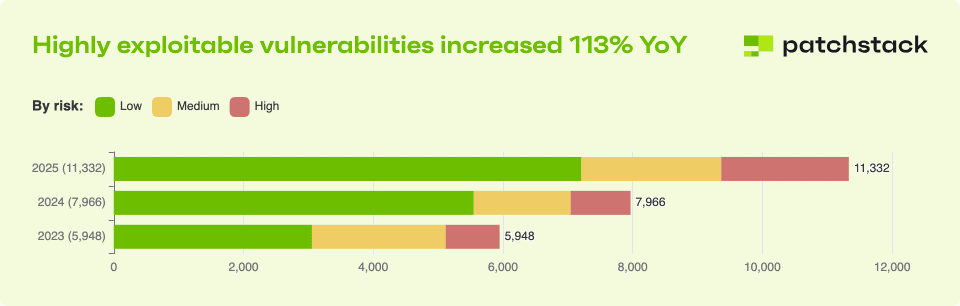
- A security burden that never lets up. In 2025, over 11,000 new vulnerabilities were identified in the WordPress ecosystem — that’s a new exploitable flaw disclosed roughly every three to four hours. The vast majority live in plugins, not WordPress core itself.
- Support that isn’t there when you need it. Downtime at 2am, a broken checkout page after a plugin update, a hacked form — these are the moments where hosting support either earns its keep or doesn’t.
- A platform that’s outgrown its environment. As traffic grows and content scales, underpowered hosting creates a ceiling. What worked for a 10-page site starts to buckle under a growing WooCommerce catalogue or a high-traffic blog.
- Web development costs that keep expanding. Between premium plugins, security add-ons, developer patches, and upsold hosting tiers, the total bill often looks nothing like the original plan. That’s one of the well-documented cons of WordPress at scale — and a common final nudge toward migration.
If any of these feel familiar, you’re in the right place.
Before You Migrate: What You Need to Decide First
Before jumping into the migration steps, spend ten minutes on these three questions. This will save you from completing a technically perfect migration that still doesn’t solve your actual problem.

Is this a hosting problem or a WordPress problem?
The distinction matters more than most people realize. If your frustrations center on slow load times, frequent downtime, or support that never picks up — those are hosting problems. Moving to a better host will very likely fix them.
But if you’ve ever found yourself wondering why WordPress is so hard to use at scale, the answer is rarely the server. The problems with WordPress at scale are platform-level, not infrastructure-level. Changing servers doesn’t simplify a plugin-dependent architecture.

Is WordPress still the right platform for where your business is heading?
WordPress powers over 43% of the internet for good reason — it’s flexible, widely supported, and backed by a vast ecosystem of developers and tools. For most businesses asking whether WordPress is a good website builder, the honest answer is: yes, for a wide range of use cases.
That said, if your needs have grown toward complex custom functionality, headless architecture, or tight performance requirements, it’s worth a brief look at alternatives to WordPress before committing to a migration.

What are your non-negotiables for the new host?
Before you move your WordPress site to a new host, get specific about what you actually need. Consider PHP version compatibility with your current theme and plugins, storage and bandwidth that matches your traffic reality, and uptime guarantees backed by an SLA — not just marketing copy.
Decide whether you want managed hosting, where the provider handles updates and security, or unmanaged, where you retain full control but carry the overhead. Factor in server location relative to your primary audience, since physical proximity still affects latency. And test their support before you commit — open a pre-sales ticket and see how fast and how well they respond.
How to Migrate Your WordPress Site to a New Host
There are two ways to approach a WordPress migration: using a plugin, which handles most of the heavy lifting automatically, or doing it manually, which gives you full control but requires technical confidence.
Before either method, the preparation stage is non-negotiable.
Pre-Migration Checklist
A rushed migration is the most common cause of data loss and unexpected downtime. The steps below protect everything you’re about to move.
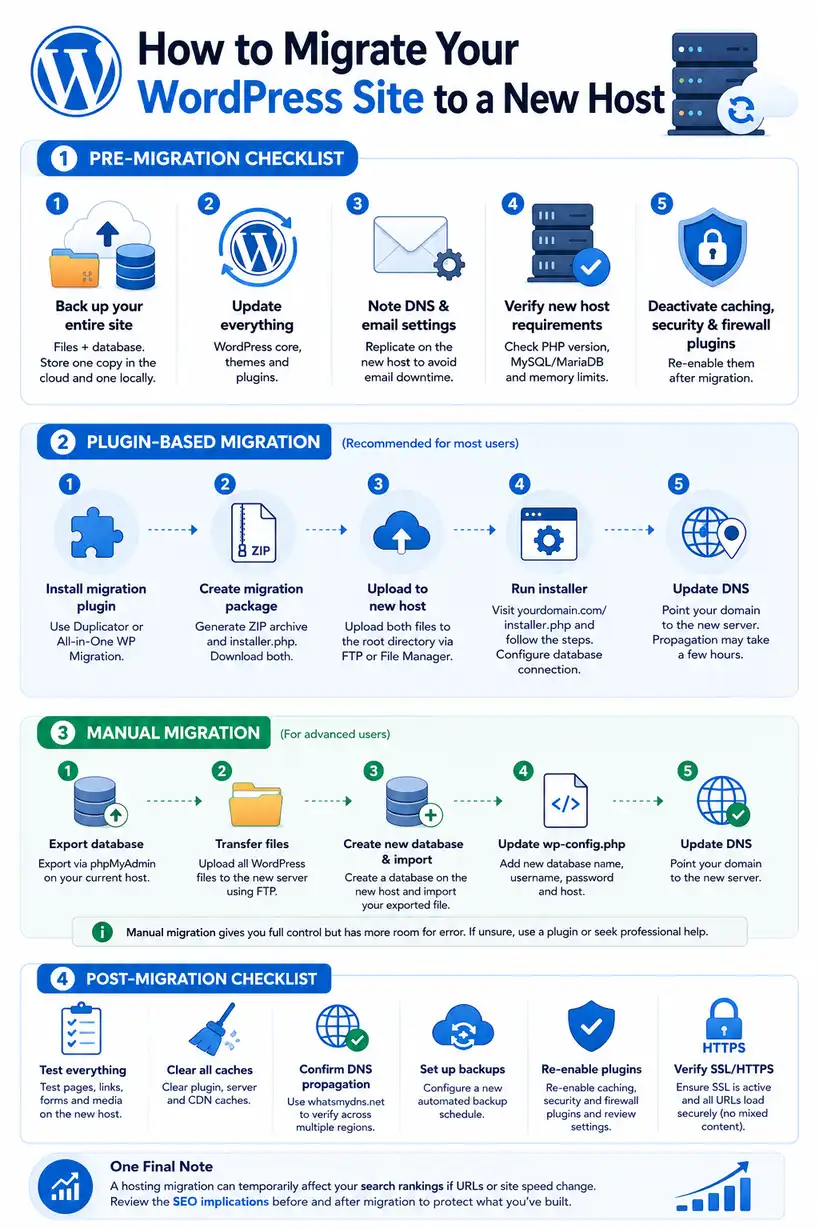
Step 1: Back up your entire site. This means both your website files and your database. Use a plugin like UpdraftPlus or your host’s built-in backup tool. Store one copy in the cloud and one locally — not just on the server you’re leaving.
Step 2: Update everything. Before you migrate, bring WordPress core, all themes, and all active plugins to their latest versions. Migrating outdated software can cause compatibility issues on the new host.
Step 3: Note your DNS settings and email configuration. These will need to be replicated on the new host or through your domain registrar. Losing email during a migration is a common and avoidable mistake.
Step 4: Verify the new host meets WordPress requirements. Confirm the host supports the PHP version your site and plugins require, the correct MySQL or MariaDB version, and sufficient memory limits. Your current host’s control panel will show you what you’re running.
Step 5: Deactivate caching, security, and firewall plugins. Tools like WP Rocket, Wordfence, and similar plugins can interfere with the migration process. Disable them temporarily until the move is complete.
Plugin-Based Migration (Recommended for Most Users)
A migration plugin works by creating a complete archive of your site and packaging it alongside an installer script. You upload both to your new host, run the installer, and it rebuilds your site automatically.
Two reliable free options are Duplicator and All-in-One WP Migration. The steps below apply broadly to either.
Step 1: Install the migration plugin on your existing site. Go to Plugins > Add New on your current WordPress dashboard, search for your chosen plugin, and activate it.
Step 2: Create the migration package. Follow the plugin’s export or package wizard. It will scan your site and generate two files: a zip archive containing your full site, and an installer PHP file. Download both to your computer.
Step 3: Upload both files to your new host. Log into your new hosting account and use the File Manager or an FTP client to upload the archive and the installer file to the root directory of your new domain.
Step 4: Run the installer. In your browser, navigate to yourdomain.com/installer.php. The installer will walk you through the setup, including configuring the database connection for your new host. You’ll need the database name, username, and password from your new host’s control panel.
Step 5: Update your DNS. Once the site is confirmed working on the new host — test it using a temporary URL or your hosts file before going live — update your domain’s DNS records to point to the new server. Propagation typically takes a few hours, though it can take up to 48 hours globally.
Manual Migration (For Advanced Users)
If your site has complex server configurations, custom code, or you simply prefer full control, manual migration is the alternative. It follows the same logical sequence as the plugin method but every step is done by hand.
Step 1: Export your database via phpMyAdmin on your current host.
Step 2: Transfer all WordPress files to the new server using an FTP client such as FileZilla.
Step 3: Create a new database on the new host and import your exported file.
Step 4: Update wp-config.php with the new database name, username, password, and host.
Step 5: Update DNS records as above.
This approach gives you the most visibility into what’s happening, but it also has the most room for error. If you’re not comfortable editing configuration files, the plugin method is safer. And if the complexity of your setup makes either option feel risky, outsourcing the migration to a web development team is a legitimate and often cost-effective choice.
If you’re not sure where to start, our guide on how to choose a web development company is a helpful starting point.

Post-Migration Checklist
Once the migration is complete, work through this checklist before announcing anything or removing the old site.
Step 1: Test every page, link, form, and media file on the new host. Don’t assume — click through the site as a visitor would, and submit at least one test form.
Step 2: Clear all caches. This includes your caching plugin, any server-level cache your new host applies, and your CDN cache if you use Cloudflare or similar.
Step 3: Confirm DNS has propagated and your domain resolves correctly on the new host. Use a tool like whatsmydns.net to check propagation across multiple regions.
Step 4: Set up a new automated backup schedule on the new host. Your old backup routine does not carry over automatically.
Step 5: Re-enable caching, security, and firewall plugins that were disabled before migration. Reconfigure any settings that may have been reset during the install process.
Step 6: Verify SSL is active and all URLs load correctly over HTTPS. Check for mixed content warnings, which can appear when internal links still reference HTTP rather than HTTPS.
One final note: a hosting migration can affect your search rankings temporarily, particularly if URLs or site speed change in the process. It’s worth reviewing the SEO implications of any site move before and after migration to protect what you’ve already built.
What Scopic Learned From Helping a Client Migrate Their WordPress Site
JobSiteCare came to Scopic for a broader engagement covering web development, SEO, and digital growth.
As part of that process, we audited their existing setup. What we found was a WordPress site sitting on a hosting environment that had become a genuine constraint — slow page loads, reliability issues that were affecting UX, and a configuration that wasn’t scaling with the platform’s growth.
The site itself was salvageable, but the infrastructure underneath it was holding it back. This meant one thing: the hosting environment needed to change.
We recommended a migration to a better-resourced host and handled the process end to end — pre-migration audit, backup, DNS configuration, testing, and post-migration monitoring. The migration itself wasn’t where the real work lived. The real work was in the audit beforehand: understanding what was actually running, identifying plugin configurations that needed updating before the move, and making sure nothing was carried across that shouldn’t be.
The outcome was a materially faster, more reliable site — and a foundation that supported everything else we did together. Over the course of the engagement, JobSiteCare saw a 1,306% increase in organic search clicks and a 490% increase in conversions. The hosting migration alone didn’t produce those numbers — the broader strategy did. But a slow, unreliable site would have undermined all of it.
None of these are the right answer for everyone. But if you’ve been nodding along through this section, it may be worth a conversation before you commit to a migration. Our guide to bespoke web development is a useful starting point.
Our Expertise in WordPress Website Migrations & SEO Solutions
If you’ve read this far, you’re likely in one of two situations.
The first: you know what needs to happen, the checklist makes sense, but you’d rather hand the migration to a team that has done it before and won’t need to learn on your site. That’s a reasonable call. Migration errors are much easier to prevent than to fix after the fact. At Scopic, we’ve been through this process ourselves and we handle it for clients regularly as part of our web development consulting services. We know where the edge cases hide.
The second: you’ve arrived at the conclusion that the issue isn’t the host at all. In this case, you should ask what a better-fit architecture actually looks like for your business. That might be a custom build, a headless approach, or a purpose-built web based application software.
There’s also the SEO dimension that often gets overlooked in migrations. A host change, done poorly, can quietly damage the search visibility you’ve spent months or years building.
Whichever situation describes you, the starting point is the same: a conversation about what you actually need. Get in touch with our team and we’ll take it from there.
Conclusion
Migrating your WordPress site to a new host is a well-defined process — but it’s only the right solution if the host is actually the problem. Done with proper preparation and the right support, it can improve your site’s performance, security, and reliability without the disruption most people fear.
If you’d like an experienced team to handle the migration for you — or if this guide has raised bigger questions about whether WordPress is still the right platform for your business — our web development team is here to help.
FAQs
How long does it take to migrate a WordPress site to a new host?
For a straightforward site using a migration plugin, the technical process can be completed in a few hours. However, when you factor in preparation, testing, and DNS propagation — which can take up to 48 hours — you should plan for one to three days from start to a fully confirmed live site on the new host.
Will migrating my WordPress site affect my SEO?
A migration to a new host should not affect your SEO if it’s executed correctly and your URLs remain unchanged. Where rankings are most commonly affected is when site speed changes significantly, SSL is not properly configured, or redirects are missed. Monitoring your rankings before and after the move and addressing any technical issues quickly keeps the risk minimal.
What is the easiest way to migrate a WordPress site?
The easiest approach for most users is a plugin-based migration using a tool like Duplicator or All-in-One WP Migration. These plugins handle the export, packaging, and reinstallation process automatically, removing the need to manually manage database exports or FTP transfers. For non-technical users, this method offers the best balance of reliability and simplicity.
Do I need a developer to move my WordPress site to a new host?
Not necessarily — plugin-based migration is designed to be accessible to non-developers, and many business owners complete it without technical help. That said, if your site has custom configurations, a large database, complex integrations, or you simply want the reassurance that it’s been done correctly, working with a developer is a sound investment.
What is the difference between migrating to a new host and switching platforms?
Migrating to a new host means moving your existing WordPress site to a different server while keeping WordPress as the platform.
Switching platforms means rebuilding your site on an entirely different content management system or architecture, such as a headless CMS or a custom-built solution.

How to Migrate Your WordPress Site to a New Host
This guide was authored by Vesselina Lezginov, and reviewed by Vyacheslav Korchagin, Principal Engineer and Senior Developer at Scopic.
Scopic provides quality and informative content, powered by our deep-rooted expertise in software development. Our team of content writers and experts have great knowledge in the latest software technologies, allowing them to break down even the most complex topics in the field. They also know how to tackle topics from a wide range of industries, capture their essence, and deliver valuable content across all digital platforms.